Last month, my Microsoft 365 auto-renewal notice popped up, and for the first time in years I actually stopped to ask myself: what am I paying for, exactly? A word processor, a spreadsheet app, a slide-deck tool, and a PDF editor that I still end up exporting to some third-party site whenever I need to actually edit text on a PDF. So instead of clicking “renew,” I uninstalled the lot and moved my entire workflow writing, spreadsheets, PDFs, presentations over to WPS Office (www.wps.com). Not just on my Windows laptop, either. I also put WPS for Pad, the company’s new iPadOS app, through its paces to see if it could genuinely replace a laptop on the days I don’t want to carry one. Across both devices, I’m not going back.
This isn’t a spec-sheet comparison or a roundup of what everyone else thinks. It’s just what happened when I actually tried to live inside this thing for a month, on two very different devices, doing the same work I do every week anyway.

Why bother switching at all
I’ll be honest, the trigger wasn’t some deep dissatisfaction with Microsoft Office. It’s a good product. The trigger was opening my banking app, seeing the subscription line item, and realising I use maybe 15% of what I’m paying for. I write documents, I build the occasional spreadsheet, I make slides for meetings nobody remembers a week later, and I edit PDFs more often than I’d like to admit. None of that requires the full weight of a Microsoft 365 subscription, and I’d been vaguely aware WPS Office existed for years without ever taking it seriously – it always felt like the kind of software your uncle installs on a work laptop because it was free and came bundled with something else.
What actually got me to try it properly was WPS’s AI push earlier this year – translation, proofreading, and rewriting tools built into the document itself, plus sync across phone, tablet, and desktop that didn’t require me to babysit which version of a file was the “real” one. That was enough of a reason to actually install it instead of just hearing about it secondhand.
Setting it up was almost suspiciously easy
I say this as someone who’s tried switching office suites before and quietly given up within a day: the install-to-actually-working gap here was shorter than I expected. No account juggling, no hunting for where my old templates went, no separate installer for the PDF tools versus the document tools. I had a document open and formatted within about ten minutes of downloading it, which is the kind of detail that doesn’t sound impressive until you remember how many pieces of “free” software make you work for the privilege of using them.
Here’s what living with it actually felt like first on Windows, where I do most of my heads-down work, then on the iPad, where I went in fully expecting to be disappointed.
Part 1: Windows, where the real work happens
PDFs that finally behave
My biggest gripe with basically every free PDF tool is that “editing” usually means annotating on top of a flattened image, not touching the actual text. WPS’s PDF module doesn’t do that you can select a paragraph, change a date, adjust the font size, and it just works, the same click-to-edit feel as a Word document rather than a workaround. That alone makes it worth a look if you’ve ever needed to actually edit a contract or agreement rather than just annotate on top of it.

It also converts straight to Word, Excel, or PowerPoint from inside the same window, which sounds minor until you realise how many times a week you’re the person emailing “does anyone have a PDF-to-Word converter that isn’t sketchy.” I used to keep three different browser tabs bookmarked for exactly that job. I’ve since deleted all three.
Spreadsheets and dashboards
I wasn’t expecting much here, since spreadsheets are usually where “Office alternatives” quietly fall apart. But the pivot tables, conditional formatting, and charting tools all hold up well on genuinely messy, real-world data, and building a small dashboard with revenue trends and category breakdowns takes noticeably less clicking around than Excel typically demands. You don’t need to hunt through menus to find your footing, which is usually where “alternative” software loses me within the first ten minutes.
The AI layer helps more than I expected here too. Instead of trying to remember the exact syntax for a formula I use maybe twice a year, I typed a plain-language request and it built the formula for me. It also flagged a trend in the data on its own a regional dip I hadn’t noticed without me manually building three separate pivot tables to go fishing for it.

Writing, without relearning anything
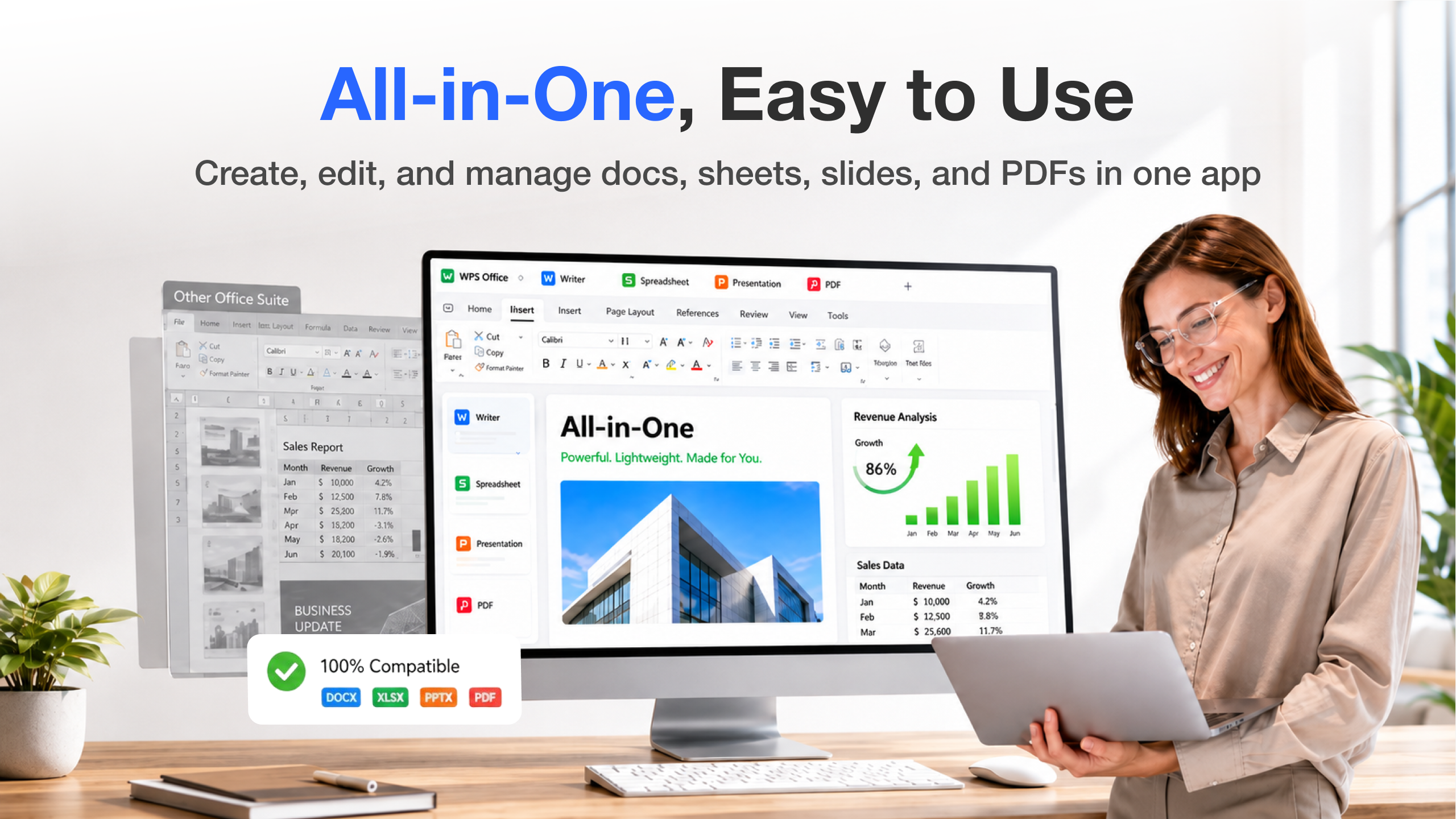
This is where switching costs usually bite hardest, but WPS Writer didn’t ask me to relearn a single habit. Same ribbon layout, same heading styles, same keyboard shortcuts I’ve had muscle memory for since university. Files stayed fully compatible going back and forth with colleagues still on Microsoft Word no mangled formatting, no “this document contains features not supported by your version” warnings, which is the specific nightmare that’s burned me before with other “compatible” office software.

WPSWriter’s ribbon and layout, side by side with Word.
The genuinely new part is the AI sitting quietly inside the writing flow: translation, grammar checking, and tone rewriting appear contextually as you type instead of requiring a separate tab. It now covers Malay, Vietnamese, Korean, and Italian on top of the usual list, which matters a lot more than it sounds if half your inbox is written in a mix of languages, which living in this part of the world mine usually is. Being able to translate and clean up tone without ever leaving the document is the kind of small friction removal that adds up fast.
Part 2: Taking it to the iPad

This is the part I was genuinely doubtful about. Every “full office suite on a tablet” claim I’ve tried over the years has quietly turned out to be a stripped-down mobile app wearing a desktop costume fine for a quick edit, useless the moment you need a real formula or a properly formatted document. So I loaded WPS for Pad onto an iPad, dropped my laptop in a bag I didn’t open for four days, and tried to do a normal workweek off the tablet alone.
A Mac-consistent workflow, not a mobile-app afterthought
The first thing that struck me was how little I had to relearn. The menus, the toolbar layout, even the keyboard shortcuts, are basically lifted straight from the desktop app. I plugged in a Bluetooth keyboard and my fingers already knew where everything was no hunting through a redesigned mobile UI, no “where did they hide the formula bar” moment. It’s the small detail that made me stop treating the iPad as a lesser device for the rest of the week.

Apple Pencil and Stage Manager actually get used
The two iPad-specific features I expected to ignore ended up being the ones that stood out most. Annotating a PDF contract with the Apple Pencil underlining a clause, circling a number, jotting a margin note feels natural in a way that mouse-based PDF annotation never quite manages. And with Stage Manager, you can run a spreadsheet and the document you’re writing about it side by side, resizing windows like on a laptop, instead of switching tabs one at a time like most iPad apps force you to.

AI Slides and AI Spreadsheets, minus the laptop
The AI tools translate over to the tablet without feeling neutered. “Help Me Write” can generate a full first-draft slide deck from a one-line prompt, which you can then clean up with “Help Me Rewrite” instead of manually reformatting text boxes one by one the kind of task that normally only gets done properly at a desk, with two monitors and a lot more patience than a commute allows.

Generating and refining a full slide deck from a text prompt, entirely on the iPad.
On the spreadsheet side, typing a plain-language request instead of writing a formula from memory worked just as well on the tablet as it did on Windows, which matters if, like me, you can never remember the exact syntax for an INDEX/MATCH off the top of your head, whether you’re at a desk or on a train.

How it compares to what I was using before
I want to be fair about this rather than pretend WPS wins on every front, because it doesn’t. Microsoft 365 still has a deeper bench of advanced formula, macro, and formatting tools if you’re doing genuinely specialist spreadsheet or document work – if your job is building complex financial models all day, this isn’t the tool to switch on that alone. Google Docs still wins if your entire workflow already lives in a browser tab and you never work offline. Where WPS wins is the combination of desktop-and-mobile continuity with an offline-capable app, which is exactly the gap that sits between those two for anyone who works from more than one device.
Who I’d actually recommend this to
Not everyone. If you’re deep into VBA macros, or your job runs on a fifteen-tab financial model with formulas nested four layers deep, stay on Microsoft Office – I’m not going to pretend WPS matches that. But if your actual daily use looks like mine writing, light-to-medium spreadsheets, the occasional deck, and PDFs you need to genuinely edit rather than just glance at – I’d tell you to try it before renewing anything. I’d especially point students and anyone bouncing between a laptop and a tablet toward it, because that cross-device continuity is the single biggest quality-of-life change I noticed all month.
I’d also flag it to anyone doing a lot of cross-language work. I didn’t expect the built-in translation to matter as much as it did, but it quietly removed a step I used to do manually, copying text into a separate translator tab and back again, every single time a document came in from a client or collaborator writing in a different language.
Everything talks to everything
The part that’s genuinely changed my day-to-day, across both devices, is the cross-format, cross-device continuity. Docs, sheets, slides, and PDFs all live in one app, and switching between DOCX, XLSX, PPTX, CSV, and TXT files doesn’t trigger the layout hiccups I half-expected on Windows or on the iPad.

I started a document on a Windows laptop, picked it up on the iPad on the train, annotated a PDF with the Apple Pencil later that day, and finished the write-up back at my desk that evening same file, same state, no exporting and re-importing anything, and no “which version is the latest” panic. That kind of loop, repeated over a normal working week rather than a one-off demo, is what makes the cross-device pitch feel real rather than just a nice line on a slide.
What a typical day could look like
To make this less abstract: picture an ordinary weekday. You open a draft on the laptop over breakfast, mark up a PDF from a client with the Apple Pencil while waiting for a meeting to start, tidy up a slide deck on the iPad in the ten minutes before that meeting, and finish the actual write-up back on the laptop that evening. At no point do you need to email yourself a file, plug in a cable, or think about which app has the “latest” version. That’s not a dramatic story, and that’s exactly the point the software is designed to stop being something you have to think about, which is the entire job of an office suite in the first place.
The flaws, all together
To collect everything in one place: large, heavily-tabbed spreadsheets are noticeably slower than I’m used to on Windows. The iPad app is new enough that I wouldn’t trust it yet with my most complex work, and a small number of keyboard shortcuts don’t map cleanly from the desktop version. And on both platforms, the AI features are built for everyday writing and data tasks, not specialised statistical work useful, but not a replacement for dedicated tools if that’s what you actually need.
The verdict

For what it costs free to start, with a premium tier that runs a fraction of a Microsoft 365 subscription WPS Office covers essentially everything I actually use an office suite for: writing, spreadsheets, presentations, and PDF editing, all speaking the same file formats as Microsoft Office, on whichever device I happen to be holding. It’s not trying to out-feature Excel’s most obscure formulas or Word’s most niche formatting tools, on either Windows or iPadOS, and it doesn’t need to. It’s betting that most of us don’t need those anyway, and that what we actually want is one lightweight, consistent app that doesn’t punish us for switching devices mid-task laptop, tablet, or otherwise.
A month ago I’d have laughed at the idea of dropping Microsoft 365 for good, on either of my main devices. Today my subscription has lapsed, my documents still open fine on my laptop and my tablet, and I haven’t missed it once.